Every part of running a fleet, in one place.
Eight modules cover your vehicles, your drivers and what they cost. Every one is optional: you choose the modules your fleet needs and leave out the rest, so the system stays clean and simple for the people who use it. The ones you choose are set up around how your operation already works, and they all feed the same record for every vehicle.
The screens on this page use fictional data.
Asset register
Every vehicle and piece of equipment has one record: what it is, where it’s based, who drives it and what it costs. The rest of Simply Fleet builds on that record, from LDVs and trucks to trailers and yellow machines.
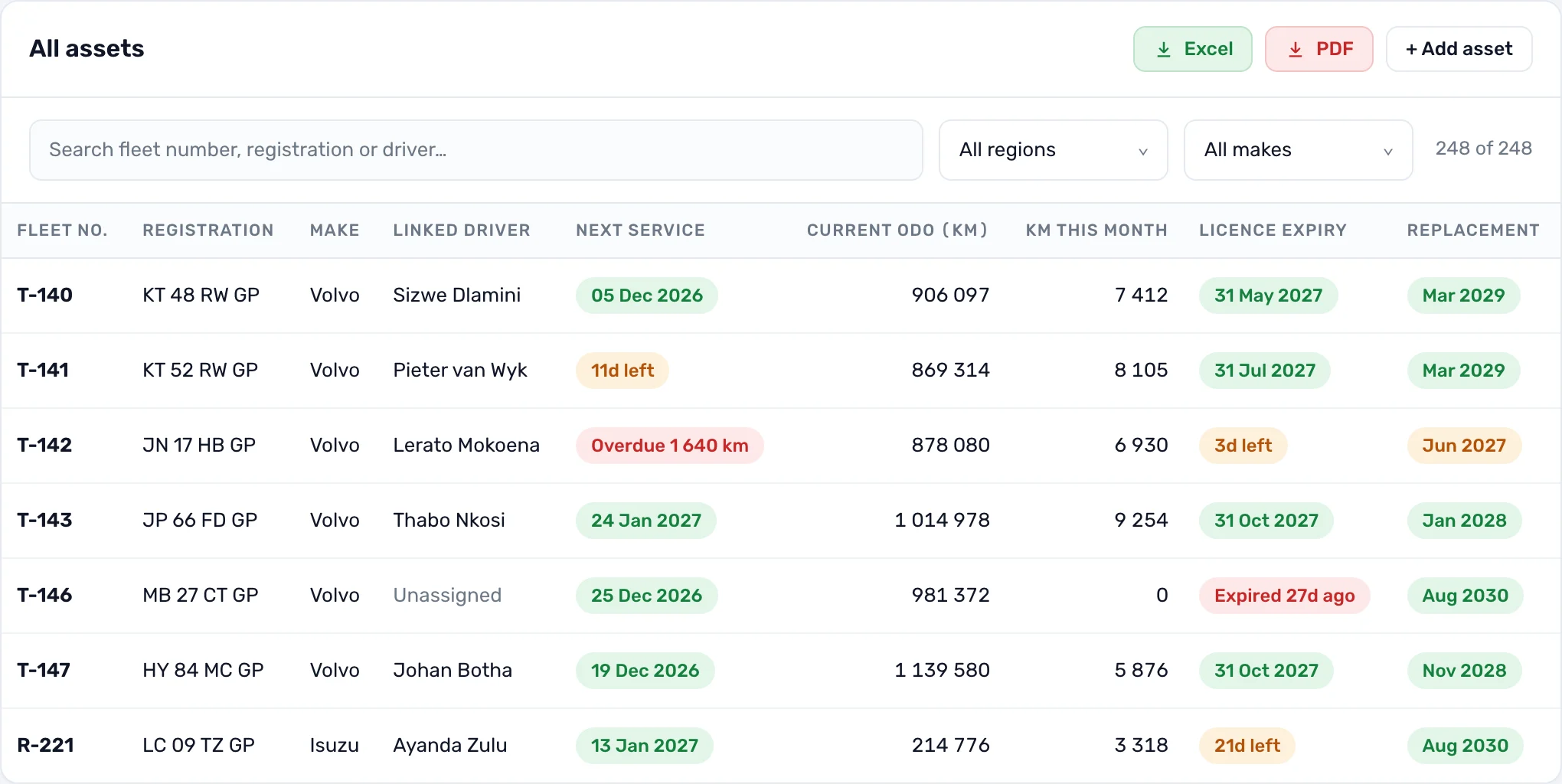
- One record per asset, grouped the way your business runs: by region, branch, cost centre, type of ownership or whatever suits your fleet.
- Documents on the record. Licence discs, insurance and warranties are stored with the vehicle, with a reminder before each one expires.
- A QR code for every asset, printable as a windscreen sticker, so the right record is a scan away. The vehicle’s licence disc can be scanned too.
- Accessories and equipment. Items that belong to an asset, such as a fire extinguisher, are recorded against it with their own inspection and renewal dates, and a reminder before each one falls due.
- A full history. Every move between branches, drivers and cost centres is logged on the record.
- Claims and correspondence. Insurance claims run from the vehicle, and emails to insurers, lessors and service providers go out from the same place.
Maintenance
Services are scheduled by kilometres, by time or both, so vehicles are seen to before they break down. The schedule runs off each vehicle’s odometer readings, whether your drivers capture them on their checklists or they come in from your telematics provider.
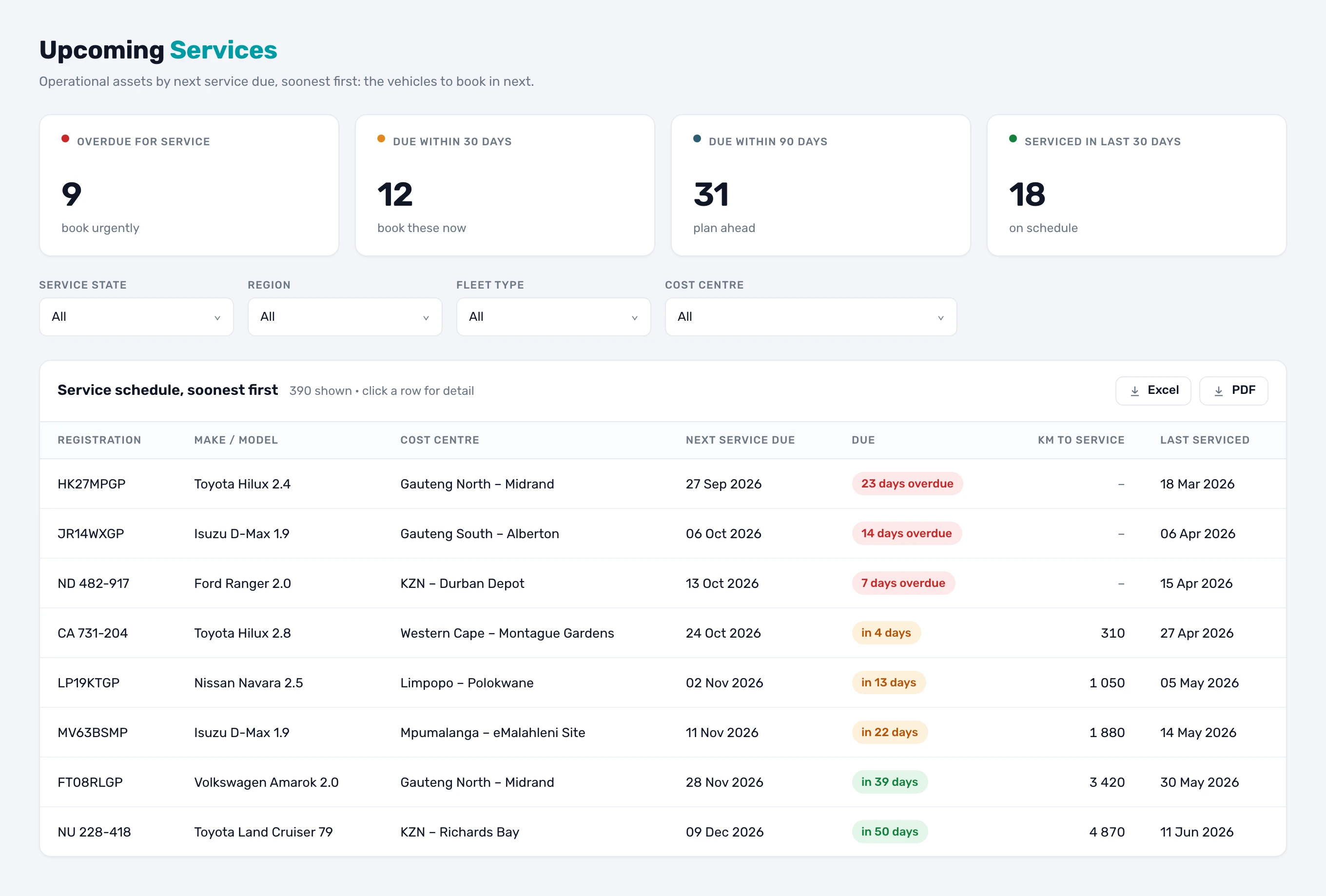
- Intervals set per vehicle, by kilometres, by months, or whichever comes first.
- Due dates from real usage. Each vehicle’s next service is forecast from how far it actually travels, so a busy LDV comes due sooner than one that stays in the yard.
- Configurable reminders go to the people responsible before a service falls due. You choose who is told and how far ahead.
- Service history and a calendar of what’s coming up, for one branch or the whole fleet.
- Costs on the vehicle. Every service is recorded against the vehicle and counts towards its cost per kilometre.
- Work runs through job cards, so the quote, the approval and the invoice stay with the vehicle. See job cards & requests.
Checklists & compliance
Every checklist is configured for your fleet, so drivers answer the questions that matter for their vehicle on that day. They complete it on the phone they already carry, with photos as evidence, and anything that fails goes straight to the people who need to act on it.
- Built around your operation. We set up the questions, the vehicle types and the schedule with you, from a short daily walk-around to a detailed monthly inspection.
- The right questions for the vehicle and the day. Questions show or hide depending on the asset type, the day of the week, and whether it’s the daily, weekly or monthly checklist. A trailer gets trailer questions, and the weekly items only appear on the weekly check.
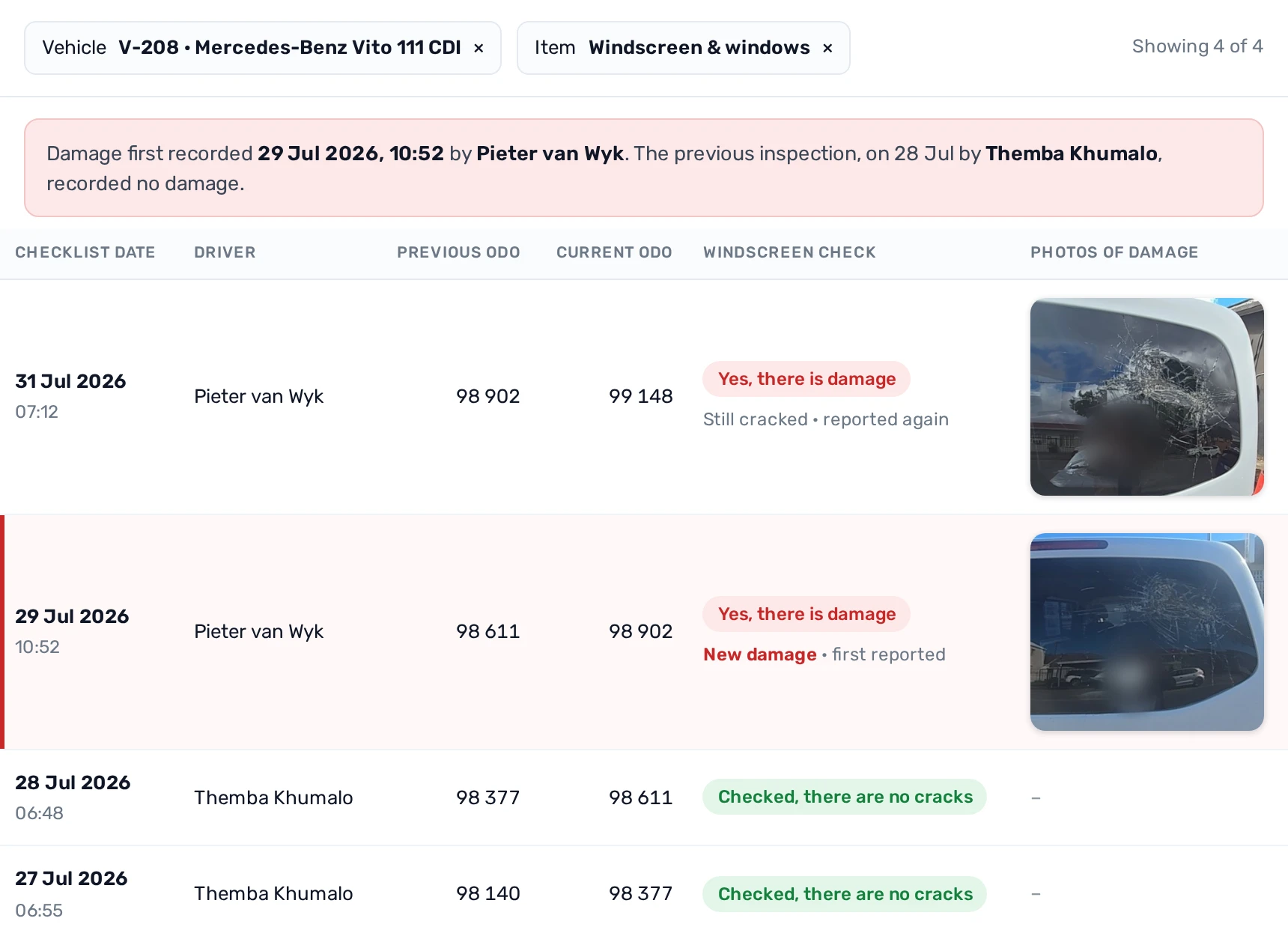
- Questions that follow the answers. Follow-up questions appear only when they’re needed. Mark the windscreen as cracked and a photo of it becomes required. Mark it clear and the driver moves straight on.
- Scan to start. Drivers start a checklist by scanning the vehicle’s QR code or its licence disc. The scan fills in the vehicle’s details, including the licence expiry date, so nobody has to type them in.
- Works without signal. Drivers can complete a checklist offline, and it submits once they’re back in coverage.
- Reminders on the driver’s phone. Scheduled reminders prompt drivers to complete their checklist, and missed checklists are flagged to their manager.
- Photo evidence on the items that matter, with damage recorded for each side of the vehicle.
- Time-stamped on submission, so a missed day can’t be filled in afterwards.
- Failures escalated by email. You decide whether a failed item notifies someone or stands the vehicle down.
- Accidents and incidents are reported the same way, with photos.
- A PDF of every completed inspection, ready to download or send on.
- Compliance by region, branch and supervisor, with a report of when each vehicle was last checked, so each manager sees how their own people are doing.
Fuel & expenses
Every rand is matched to the vehicle that spent it. Fuel, tolls, repairs and running costs come together on one record, and cost per kilometre is worked out from there.
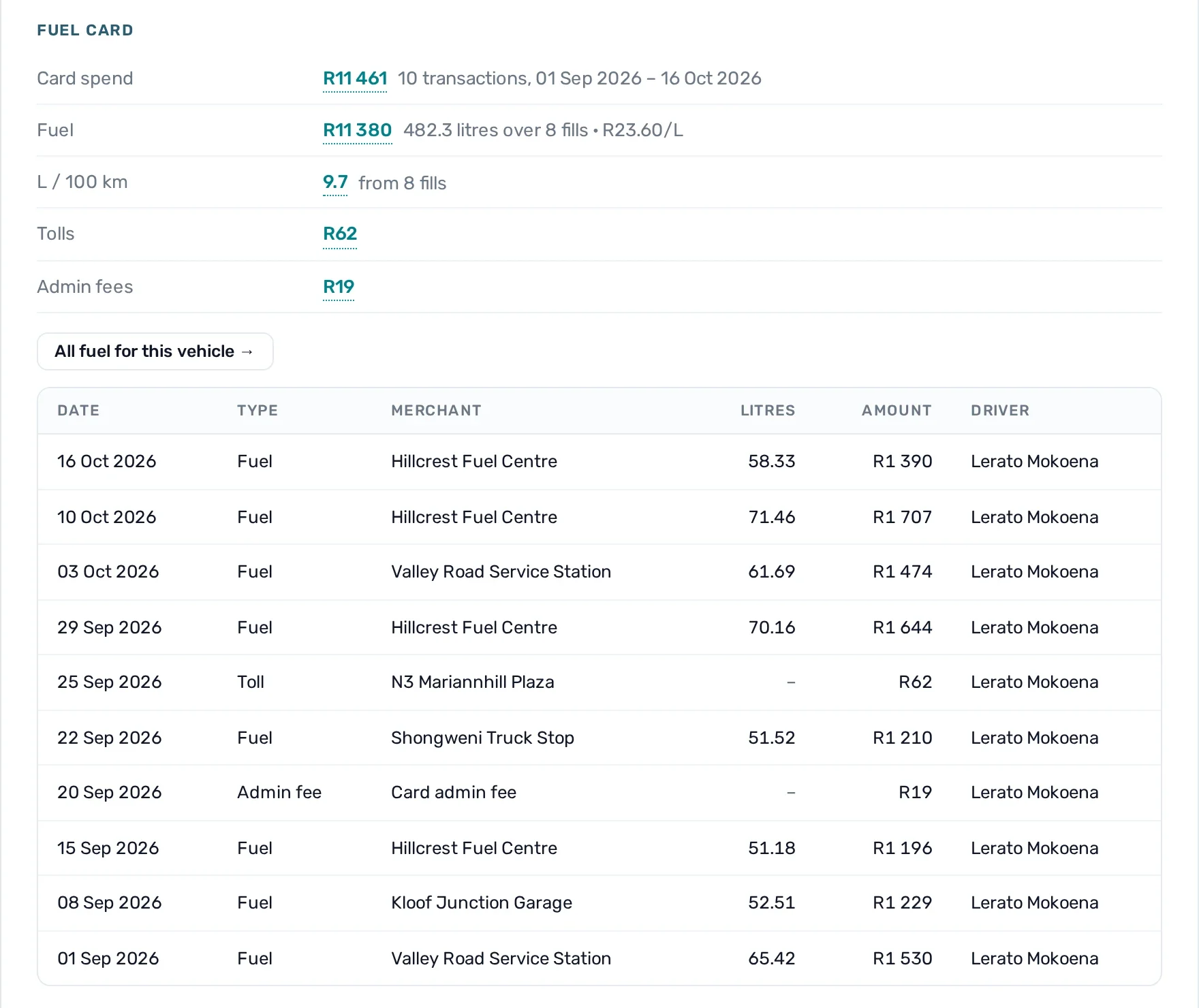
- Fuel card transactions come in from your card provider. Where there’s no feed, they’re captured or imported from Excel.
- Litres and price per litre for every fill, against the vehicle and the driver.
- Expense categories you set, so costs are grouped the way your finance team reports them.
- Cost per kilometre for each vehicle, branch and the fleet as a whole.
- Threshold alerts when a vehicle’s costs pass a limit you choose.
Odometer capture
For fleets that capture odometer readings through checklists rather than a telematics provider, a reading comes in with every checklist, backed by a photo of the instrument cluster. Each one is checked against the vehicle’s own history, so a mistyped digit doesn’t throw out service dates or cost per kilometre.
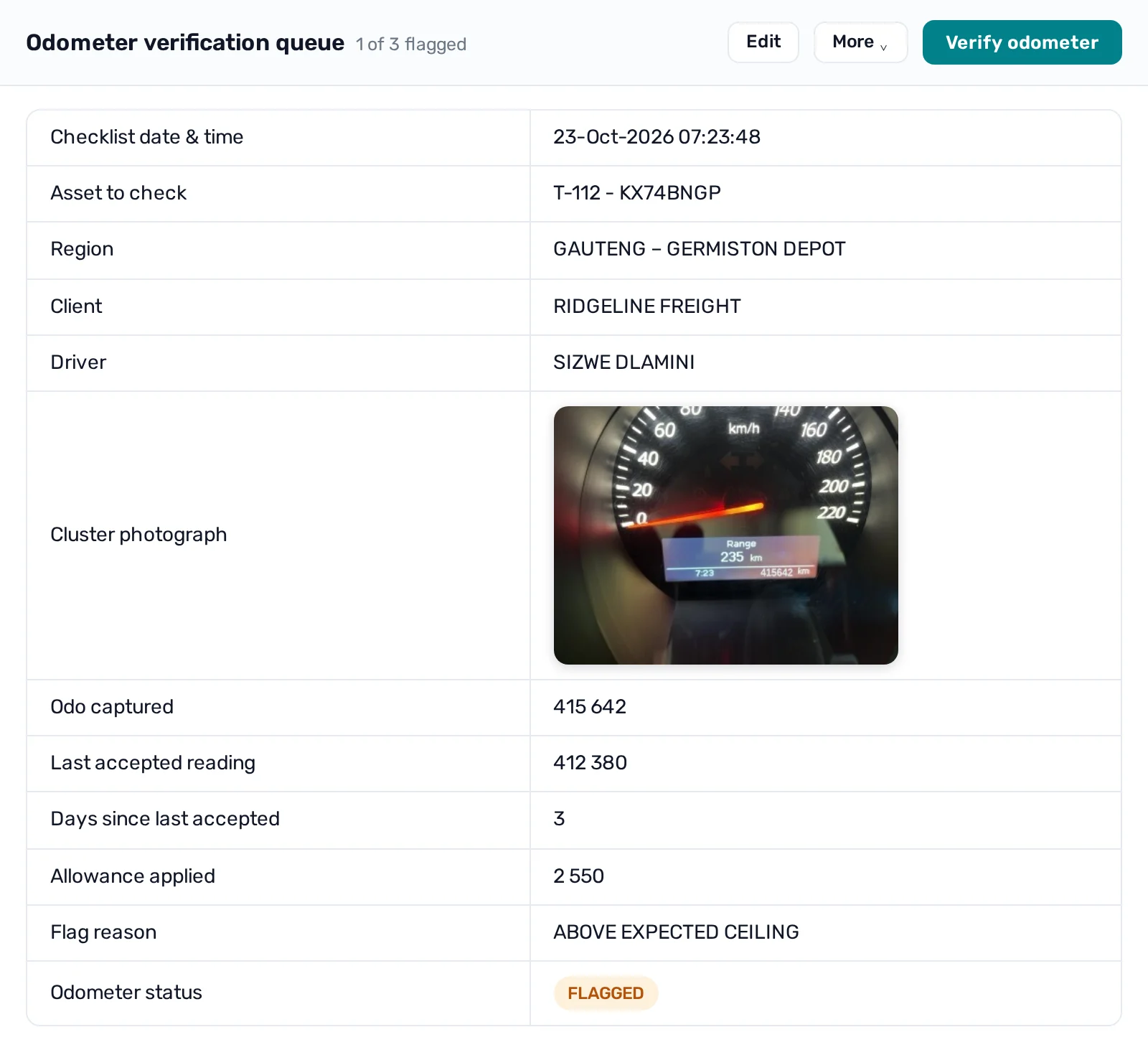
- Reading and photo together. The driver enters the reading and photographs the cluster as part of the checklist.
- Checked against the vehicle’s own pattern. The expected range for each vehicle is recalculated every night.
- Doubtful readings go to a responsible person to verify. Nothing stops the driver finishing their checklist.
- Locked once saved. The driver’s reading can’t be changed afterwards.
- Accepted readings update everything else: the vehicle record, the service schedule and kilometre tracking.
- Telematics instead. Where readings come from your telematics provider, they feed the same vehicle record.
Driver management
Every driver has a record of their licences, permits and medical certificates, and each one is chased before it lapses. Drivers see their own vehicle and record on their phone and keep it up to date themselves.
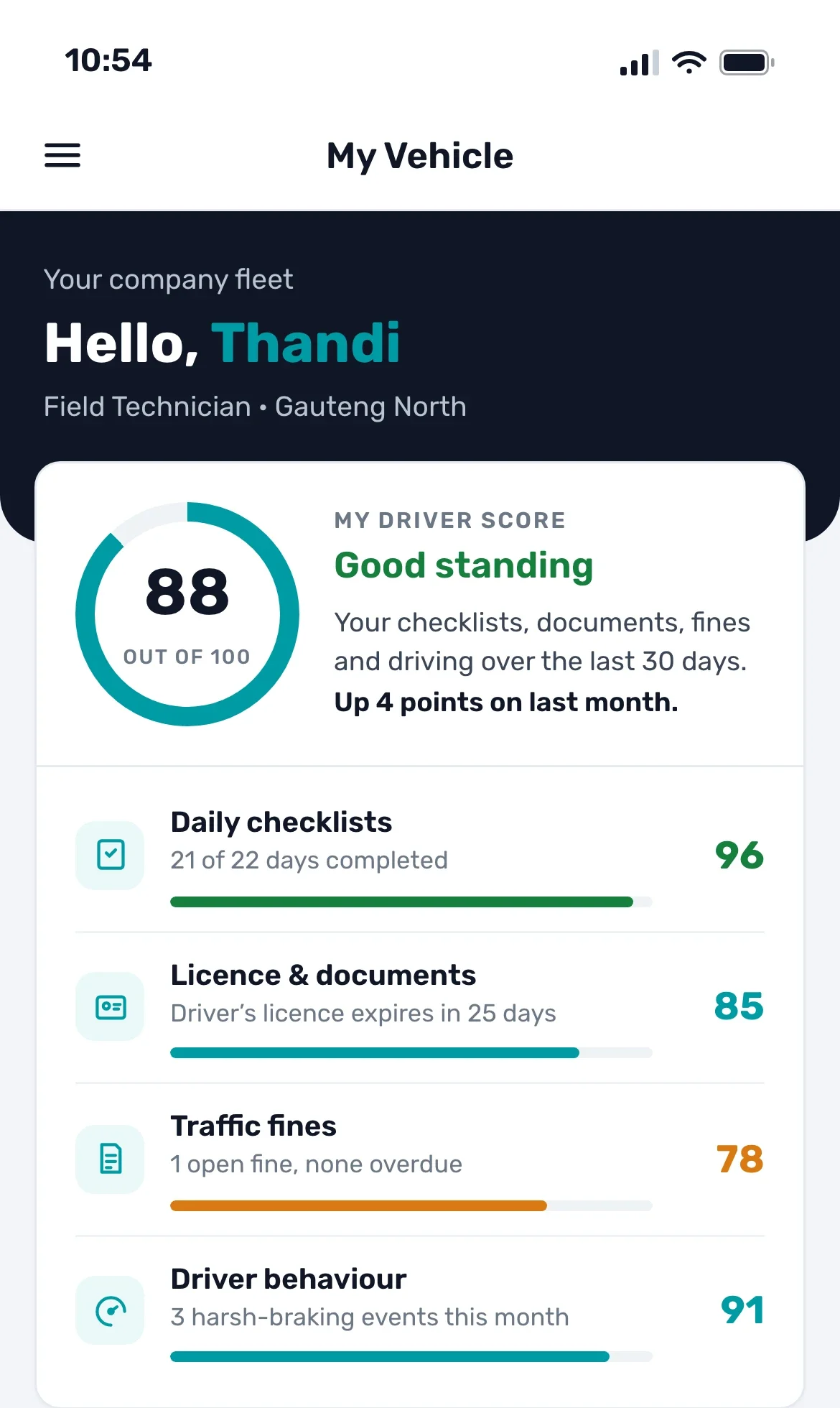
- Documents with reminders. Driver’s licence, PrDP, medical certificates and training records are stored, with a reminder before each one expires.
- Who had which vehicle. Each checklist links the driver to the vehicle, so the record shows who was driving on any given day.
- A driver score you configure. You decide what counts towards it and how much, for example checklists completed, documents in date, fines and, where you run trackers, driving behaviour.
- Set up in one step. Adding a driver can create their sign-in at the same time.
- Checked on capture. ID numbers are validated, and date of birth and age fill in from them.
- Their own view only. Drivers see their own vehicle, checklist, licence and fines, and nothing else.
Fines management
Each traffic fine is linked to the vehicle and to the driver who had it that day, so it reaches the right person before it falls due.
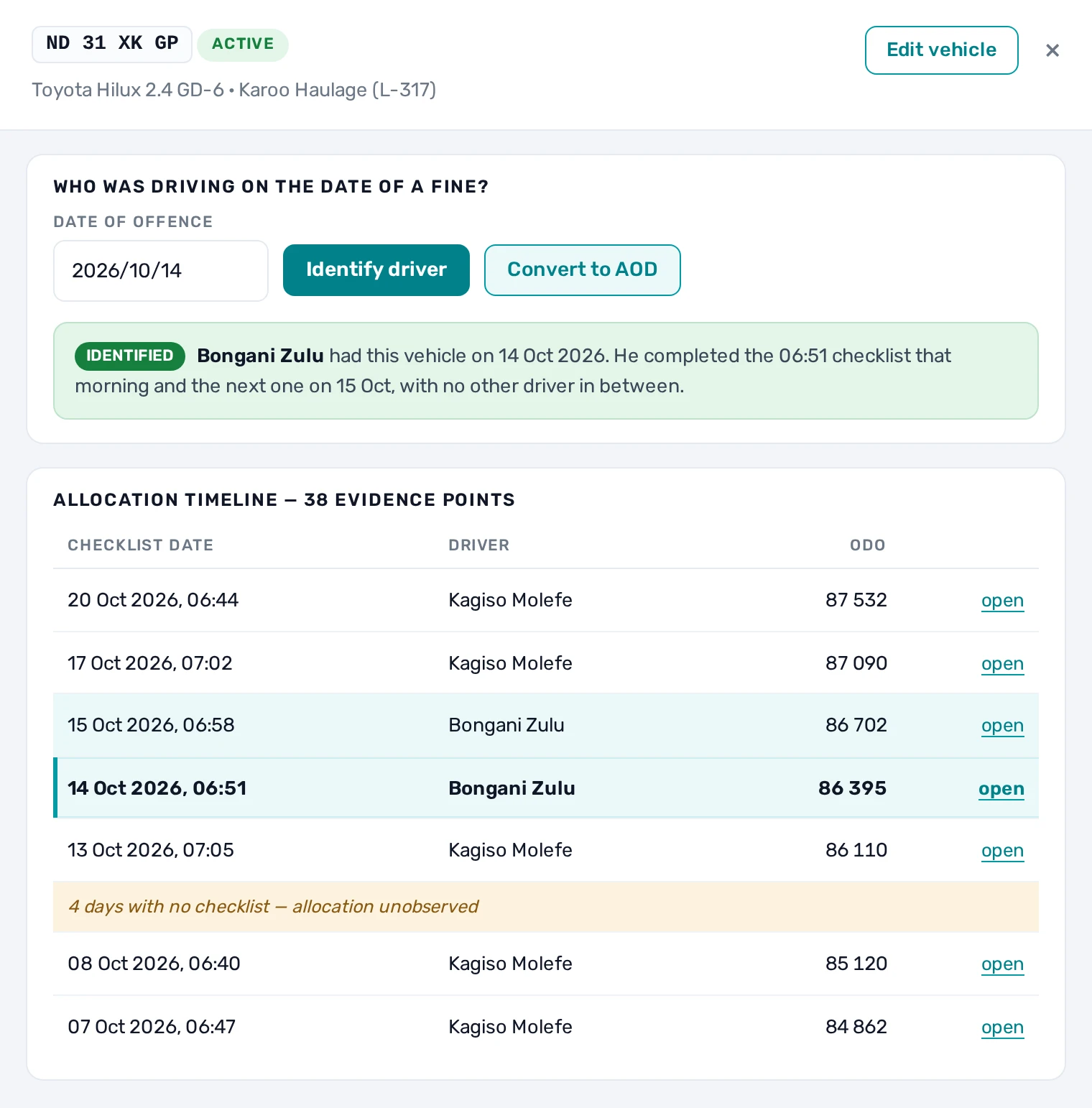
- Fines come in every night from your fines service provider, and can also be captured by hand.
- Matched to the vehicle by its registration number.
- Matched to the driver. A manager picks the vehicle and the offence date and gets the driver who had it, with a clear statement of how strong the evidence is.
- Acknowledgement of debt in one click. The form opens already filled in. The driver signs on their phone from an emailed link.
- Every detail kept: offence date and place, issuing authority, speed against the limit, demerit points, case status and the full cost, including discounts and admin fees.
- One register of every fine across the fleet, ready to export.
- Drivers see their own fines and how long they have to pay.
Job cards & requests
Repairs and everyday requests are both approved before money is spent, and everyone involved is kept informed by email.
Job cards
For repairs and services, a job card follows the work from the first quote to the final invoice. Its steps, approvals and fields are configured to your workflow, so it runs the way your business already does.
- Raised against the vehicle, with the service provider, the odometer reading and the tasks needed.
- Quote first. The provider’s quote is uploaded and approved before work starts, and a purchase order is issued against it.
- Tracked through your stages, for example quoted, approved, in progress, completed and invoiced.
- Service providers as users. Workshops and suppliers can have their own sign-in. They see only the job cards assigned to them, and nothing about your fleet, your assets or anything else in the system.
- Invoice on file. The invoice is attached and the cost is recorded against the vehicle.
Requests
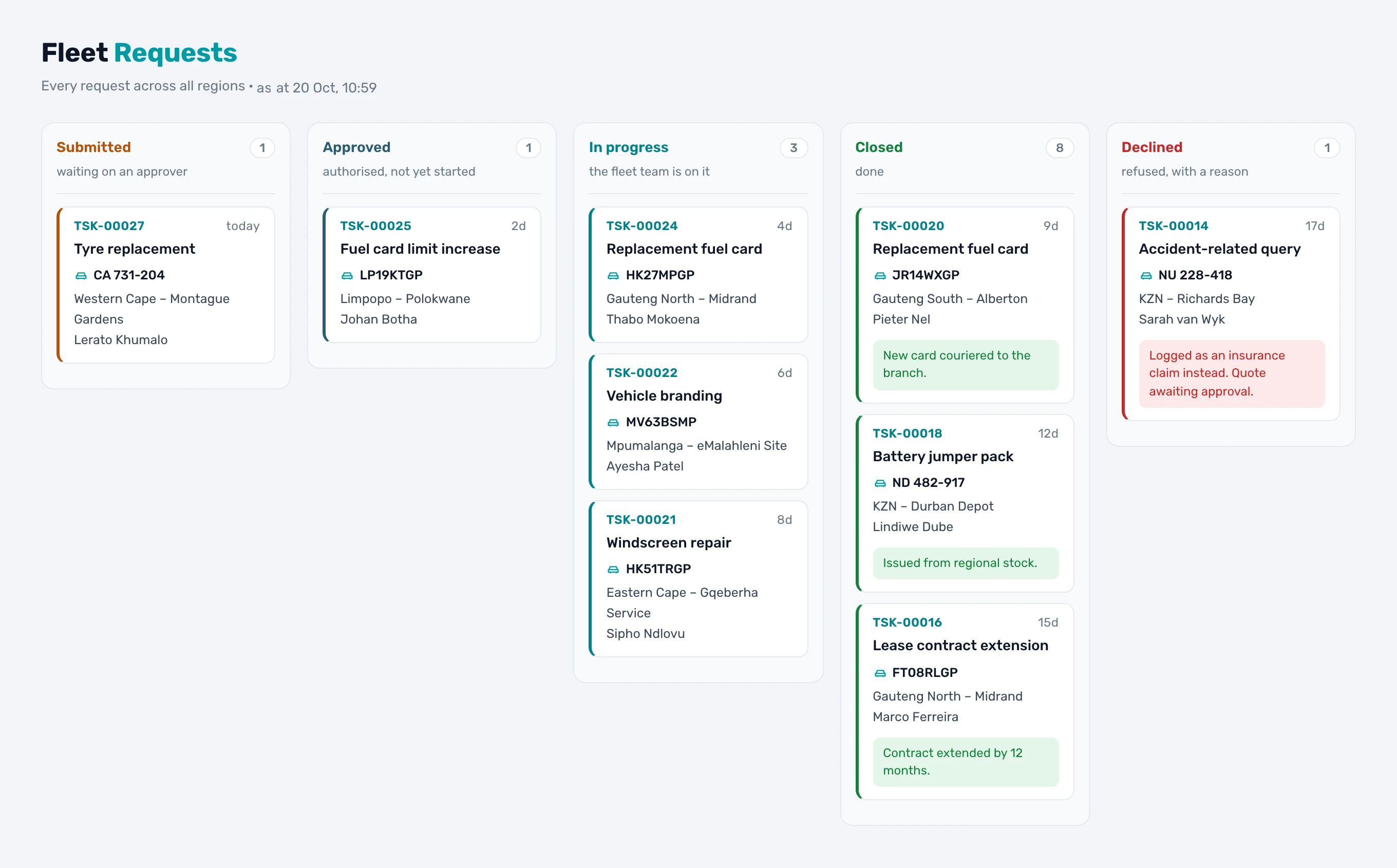
For everything else a vehicle or driver needs, a request goes to the right approver before anyone spends money.
- Raised by branch staff on the web or a phone, against a cost centre and, where it applies, a vehicle.
- Request types set for your fleet, such as fuel cards, vehicle tags, licence disc renewals, driver assessments, tracker hardware, branding and accident queries.
- Routed automatically to the approver for that cost centre, with a fallback approver if that role isn’t filled.
- One click to approve. A decline needs a reason, which goes back to the person who asked.
- Actioned and closed by the fleet team, with a note of what was done. The requester is emailed at each step.
- A reference number and a notes thread on every request, and a board that shows every request by status.
See it set up for your fleet.
Book a demo and we’ll walk through your operation first, then show you how these modules would fit around it.